Features
SBeXpress is an AutoCAD-based solution, requiring relatively little AutoCAD knowledge to use effectively. This is because it takes control of nearly every phase of creating reinforcement plans, from inserting rebars to framing the drawing, dimensioning, and labeling.
Below is a non-comprehensive list of some of the features offered by SBeXpress:
In the AutoCAD environment, SBeXpress treats the elements of reinforcement drawings as special objects. These objects can be modified at any time during work, either individually or collectively, making the work incredibly fast and secure. In addition to rebar objects, it extends the capabilities of some objects available in AutoCAD (e.g., dimension lines) and also utilizes objects that are not specifically related to reinforcement (e.g., contour lines, frames, special text). As a result, the drawing being created takes on a life of its own, sparing us the need for constant manual adjustments. For example, if you move a contour line, its label will automatically adapt to the new elevation.
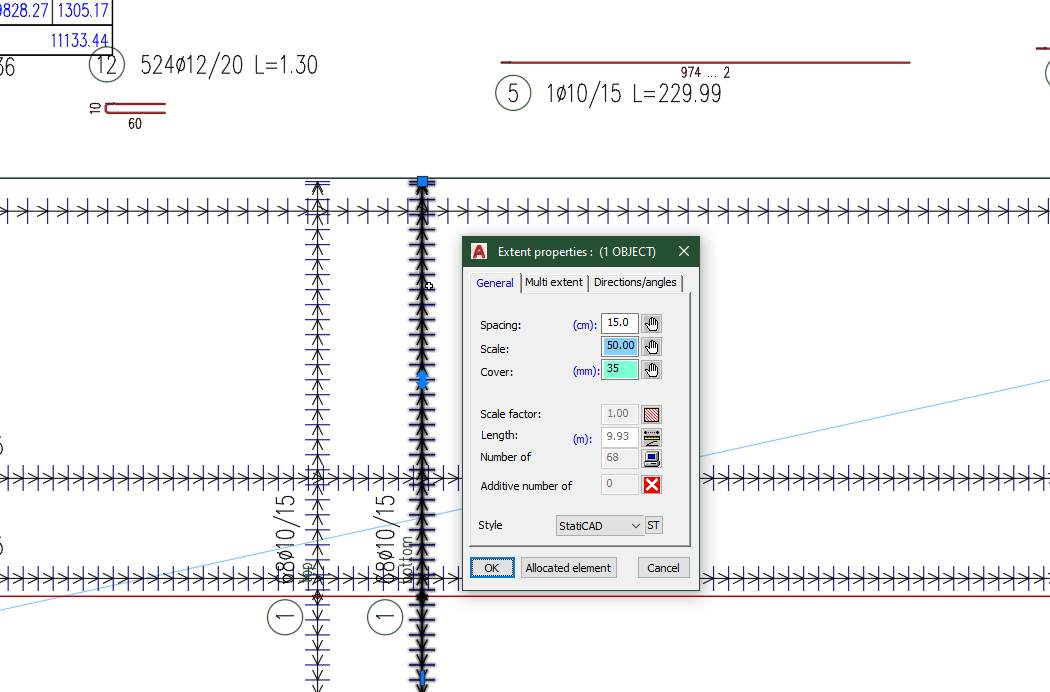
The application uses a keyboard-driven system, allowing you to execute commands with a single keystroke. This means you don't have to move the crosshair away from the drawing area to issue commands, and there's no need for a tablet either. You can use keyboard and mouse combinations for command input that are not available in standard AutoCAD. Right-clicking on individual objects brings up intelligent context menus that contain commands specific to the selected object.
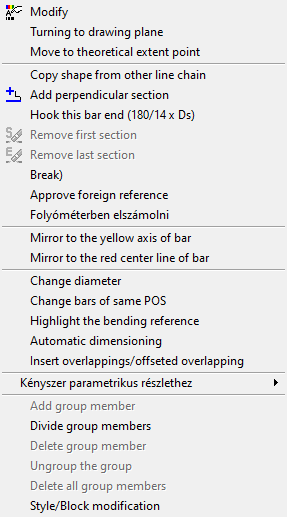
In various functions, such as the modification command, the application recognizes which object is 'under' the cursor and performs the appropriate action accordingly. This simplifies and streamlines the application's use because the same keyboard combinations are used to modify rebar, mesh, ladder, or even contour lines. Very frequently used functions, like object modification, can be accessed with CTRL, ALT, or SHIFT + right-click.
The application attempts to anticipate your intentions as much as possible. Rebar elements can be quickly inserted using the formwork contours, and any necessary modifications can be performed rapidly with intelligent AutoCAD commands and property dialogs. While the application offers extensive customization and configurability in all aspects, starting work after installation is made easier with the 'factory' default values. Complex functions allow you to create complete rebar layouts or distribute entire mesh fields in a matter of moments.
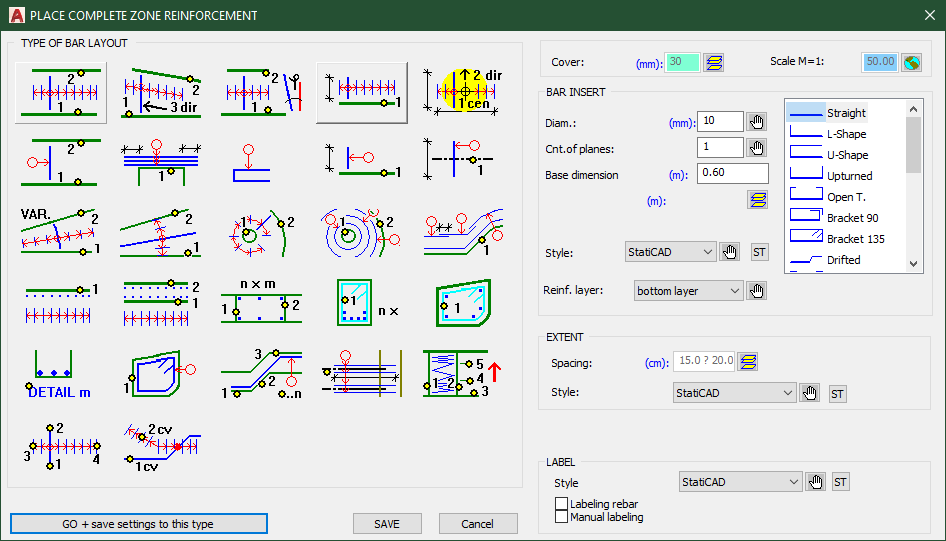
Most visible objects, such as rebar, mesh, ladders, and labels, come with a style property. Modifying the style instantly changes the appearance of the object without altering any of its other properties.
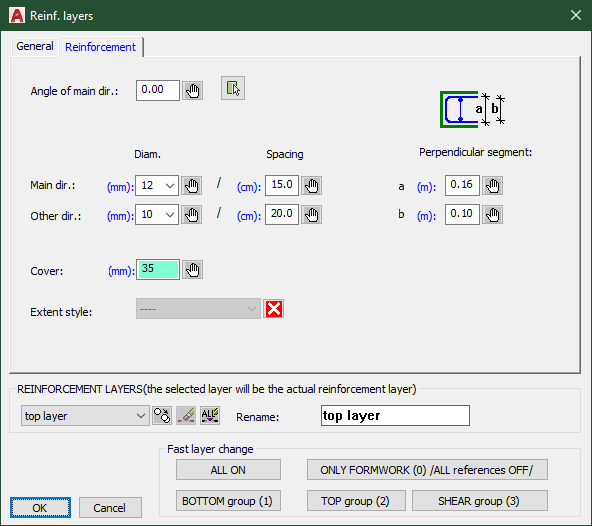
Several SBeXpress objects have reinforcement layer properties. From the reinforcement layer, you can derive certain properties of objects. For example, you can increase the diameter of all rebars on the 'bottom foundation reinforcement' layer with a single action when needed. Reinforcement layers can be turned on or off individually or collectively, similar to AutoCAD's layer system. The current reinforcement layer is always visible in the AutoCAD status bar.
This is one of the application's most complex objects. In terms of appearance, it resembles AutoCAD text, but unlike that, it can display not only constant text but also physical characteristics (diameter, length, spacing, etc.) based on the object's properties. Text evaluation is done using a format string. For example, such a format string: $s?[$six]$dx^2.0$u?[ ]%%c$fi^3.0$i![/$ok^2.0] After evaluating the individual $-marked tags, it can produce the following output: 29f35/15. With the format string, you can easily and intelligently customize your output in various ways, conforming to standards such as British Standard or DIN. Text objects can consist of six text segments, which is more than sufficient for most purposes. You can control the visibility of individual segments using text styles, so they may appear during editing but not when printing, allowing for convenient quality checks during the drawing process.
The application automatically assigns a positional mark to certain objects (rebar, mesh, points) during automatic positioning (collection). You don't need to worry about the shape of each rebar, whether there is a similar shape elsewhere, etc., as the application takes care of this for you. However, you can also intervene in the positioning process by fixing the positional mark for specific reinforcement layouts. The application alerts you to inconsistencies. You can search for positions later, freeze them, or reposition them based on weighting. It's possible to save positions based on a specific design status. Positional marks can contain not only numbers but also arbitrary strings. Different objects can be positioned according to different (individually configurable) rules (e.g., meshes as H1, H2, Hn, while rebars as 1, 2, 3... n). You can also assign positional marks differentiated by the reinforcement layer.
Using these object properties, you can work on a single DWG file for a project that, when printed, spans multiple drawing sheets or manage, for example, all the pillars of a building within a single DWG, while still positioning them according to the drawing sheet.
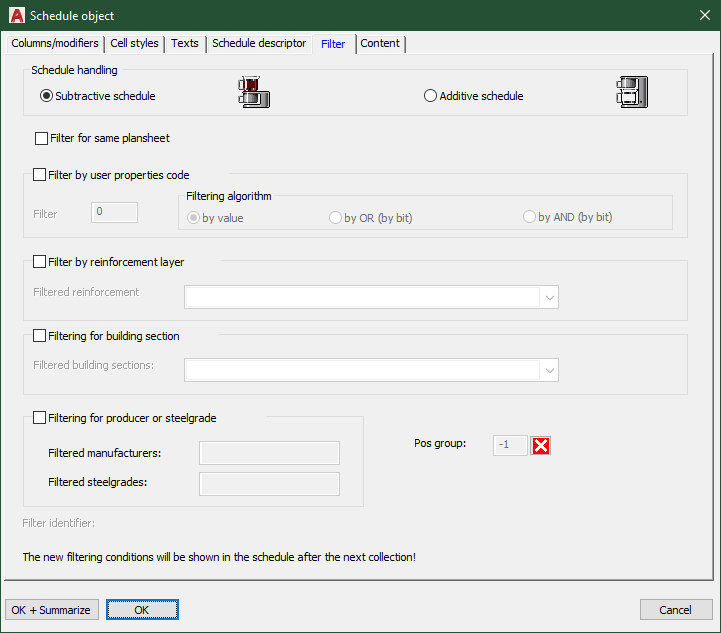
Schedule objects reflect the last collection or a previous frozen state's positioning. You can create filtered schedules where you can filter table elements based on reinforcement layer, user attribute code, and position group. Schedule objects are created based on a schedule descriptor template, allowing you to produce a wide range of schedules that meet your specific requirements.
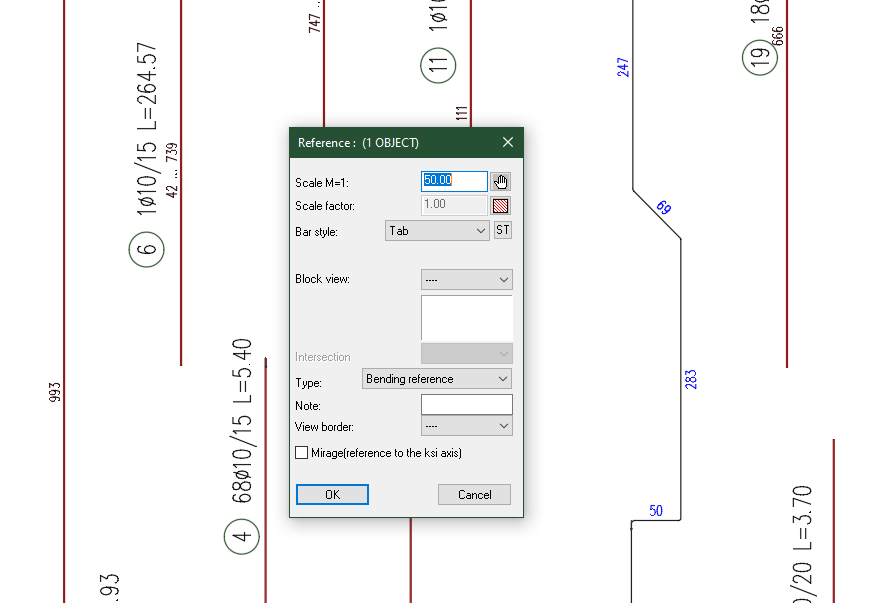
The application handles objects represented in multiple locations using references. The 'main' or parent object is depicted in one place, and everywhere else, only its references are used. References track all changes to the main instance, eliminating the need to update the diameter of reinforcement bars in all sections if you make changes on the plan. The application's main principle is 'every piece of data should have exactly one source.' References are not included in the collection and can only have the same positional mark as their corresponding main instance. SBeXpress always knows the references for each main instance, so if you delete a main instance from the drawing, all of its references are immediately removed as well.
Ready to test these features in your workflow?
Start a free trial or talk to our team for a quick package recommendation.