
Trial Installation Guide
Installation
- 0
Request a trial (registration optional)
Before you can download and install SBeXpress, request a trial license first. Registration is optional. After requesting, use the license key sent by email; if you register, you can also manage licenses in your profile.
Note: Registration is optional for trial requests. If you already have an account, sign in for easier license management.
- 1
Download, and run the installer!
- 2
Select your preferred language!
Installation Options
a.) Select the AutoCAD version you want SBe Xpress to install to!
b.) If there are already installed add-ons on your AutoCAD, it is best to go out from a clean AutoCAD profile, such as the Unnamed profile.
c.) Select the WEBLicense radio button under 'Dongle-Version' options!
d.) Hit Install!
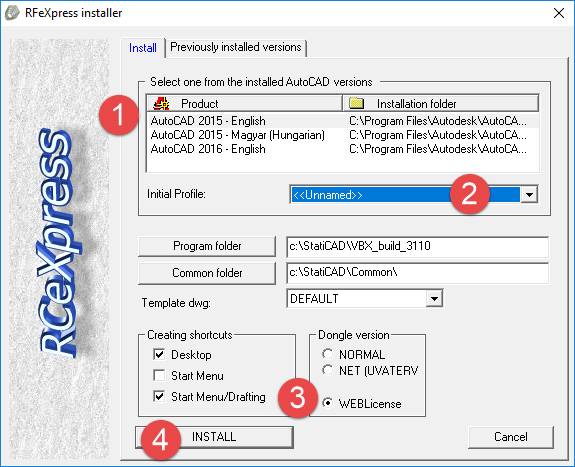
The installer will create a new AutoCAD profile, and a shortcut on your desktop which starts AutoCAD with the newly created SBeXpress profile. The build number may vary. You may install multiple build versions at the same time. Every build is a new, independent AutoCAD profile.
- 3
License
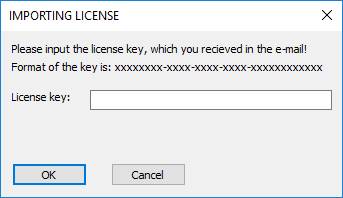
Use the trial license key you received by email and paste it into the installer. If you have an account, you can also find your keys on the Licenses page.
- 4
Troubleshooting
a.) If you cannot see the SBeXpress elements, try to restart AutoCAD.
b.) If restart doesn't help, please type 'initmenu' in the command line and press ENTER. The program makes an authorization check at every start, therefore you can use the program only if you have a live online connection. Proxies, and/or firewall settings may cause some problems. If so, or you have any other issue, please contact us for further suggestions.
Uninstall
To uninstall SBeXpress start the installer again, and select the "previously installed versions" tab.
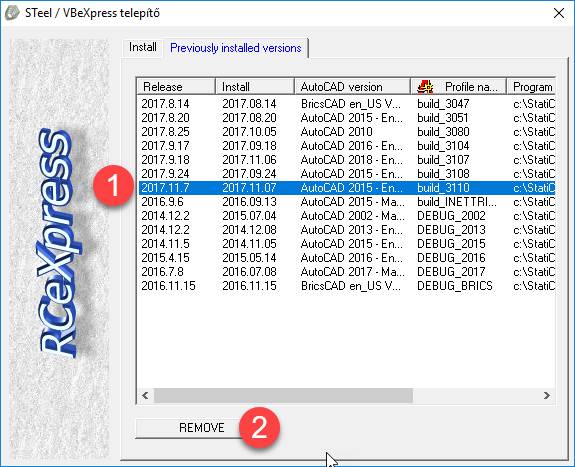
Select the version you want to uninstall, and press REMOVE!