Styles in SBeXpress
You can watch the tutorial on YouTube; the steps below will explain the content in more detail.
Style Settings Overview
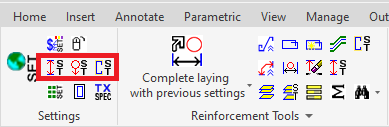
You can edit styles by clicking on one of the style setting buttons on the top-left corner
Working with Style Dialogs
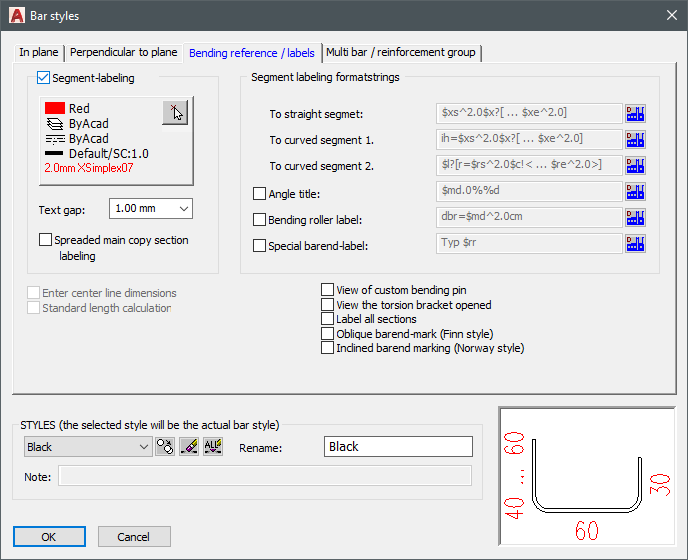
This will open the style setting dialog for the respective object type. At the bottom section you can choose a style to edit, or you can choose to clone one and create a new style based on the one currently selected. At the top section you can add/remove style elements, and set their visual style. On the picture you can see the Black style already created based on one of the existing styles.
Object Properties Configuration
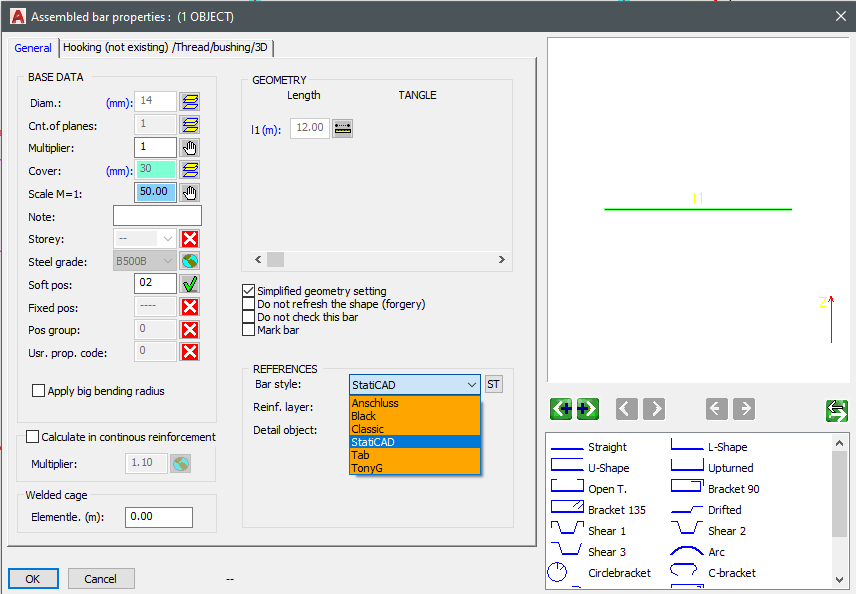
You can set the style of an object by opening it's properties. (either Right Click -> modify, or CTRL + Right Click) This will work in a selection as well. If multiple object types are inclueded in the selection, then the style modification will be performed on the type you have chosen to modify. If you click on the ST button next to the style dropdown, you get to the mentioned style setting window for this object type. The style alterations will be only visible on every object after a REGEN command
Style Block Modifications
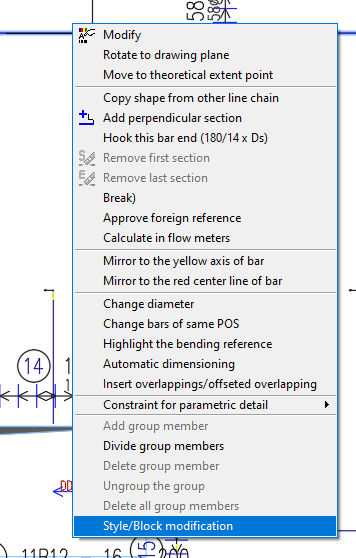
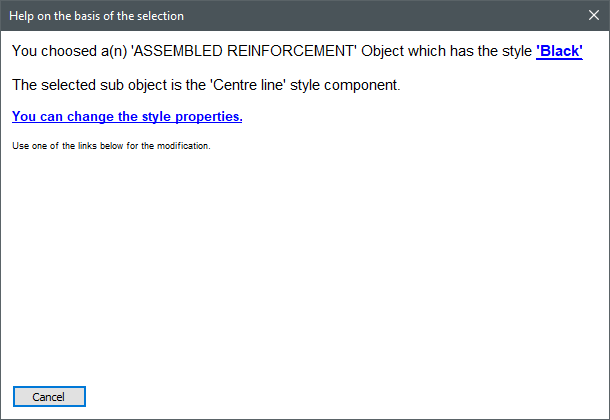
If you want to alter a specific element of the style, you can choose style/block modificaiont from the context menu of the object. This will bring up a dialog which will tell you the name of the style assigned, and the name of the particular component within the style. If you choose to edit, a blinking rectangle will show the part where you can edit the component you opened the context menu on.
Schedule Styling
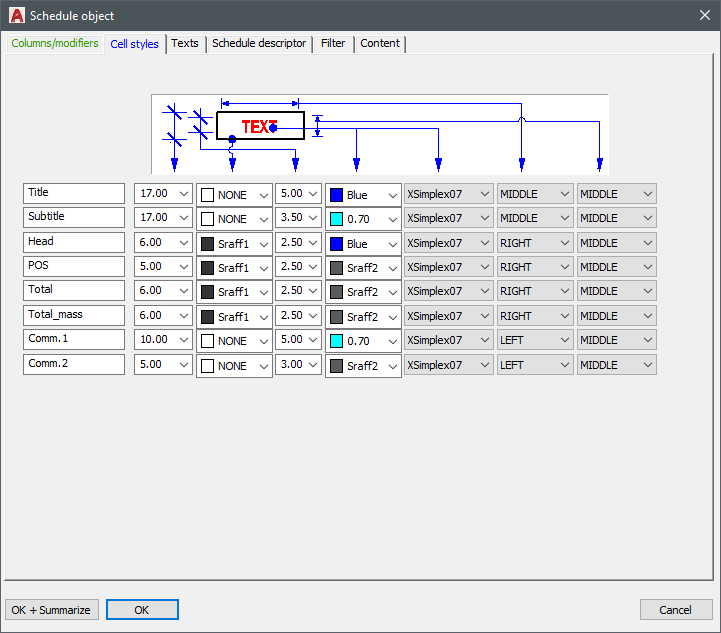
Schedule styling is done by selecting modify from the schedule context menu. There you can edit both the schedule content, and the style. It is important to highlight, that in order to edit the style of the bar references in the schedule, you must edit the rebar stlye named 'Tab'
Advanced Style Editing
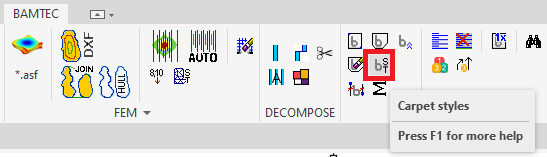
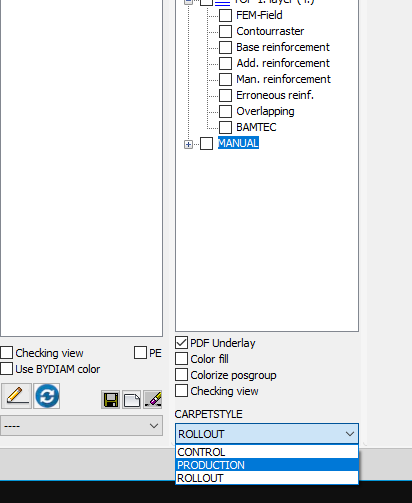
You can edit bamtec carpet styles by selecting carpet styles from the toolbar. You can select active style from the CARPETSTYLE dropdown in the bottom left. This style will be applied to all the carpets.